


Do you want to know your website ranking, everything that happens on your website, and your keyword rankings? You need this website. How to Use Similarweb Chrome Extension.
What if you could analyze any website’s traffic in seconds, without leaving your browser tab?
That’s exactly what the Similarweb Chrome extension does.
Whether you’re a marketer scoping out a competitor, a blogger hunting for traffic opportunities,
For a business owner doing industry research, this free tool gives you instant access to website data you’d normally need an expensive subscription to find.
In this guide, you’ll learn how to use the Similarweb Chrome extension from scratch — how to install it, what each feature means, how to interpret the data, and how to turn it into real, actionable insights.
No fluff. Just the steps that actually matter.
What Is the Similarweb Chrome Extension?
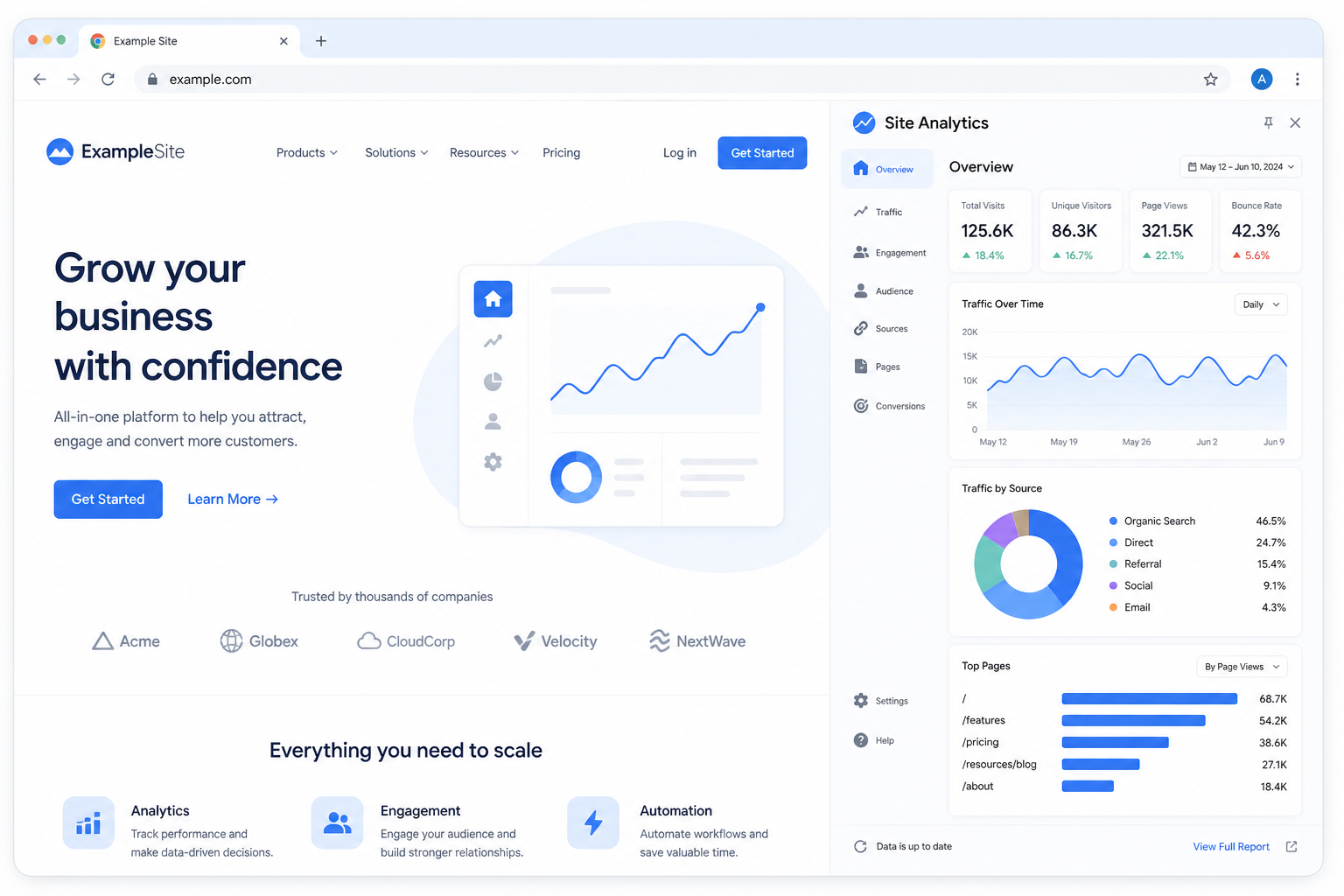
Similarweb is a digital intelligence platform used by marketers, analysts, and researchers worldwide.
Their Chrome extension is a free, lightweight version of the full platform that lives in your browser toolbar.
When you visit any website, the extension instantly shows you:
- Estimated monthly traffic
- Traffic sources (search, social, direct, referrals)
- Top referring websites
- Top keywords driving traffic
- Bounce rate, pages per visit, and average visit duration
Who should use it:
- SEO professionals validating keyword competition
- Content marketers find high-traffic topics
- Sales teams qualifying leads by traffic size
- Entrepreneurs do competitor research before launching
- Journalists and analysts fact-checking traffic claims
The extension is free to install and works on any public website. It requires no coding knowledge — just a Chrome browser and a free Similarweb account.
Key Features of the Similarweb Chrome Extension
1. Website Traffic Insights
The extension estimates monthly visits to any website. This is the number you’ll use most often.
It’s particularly useful for benchmarking competitors or spotting fast-growing sites before they become household names.
2. Traffic Sources Breakdown
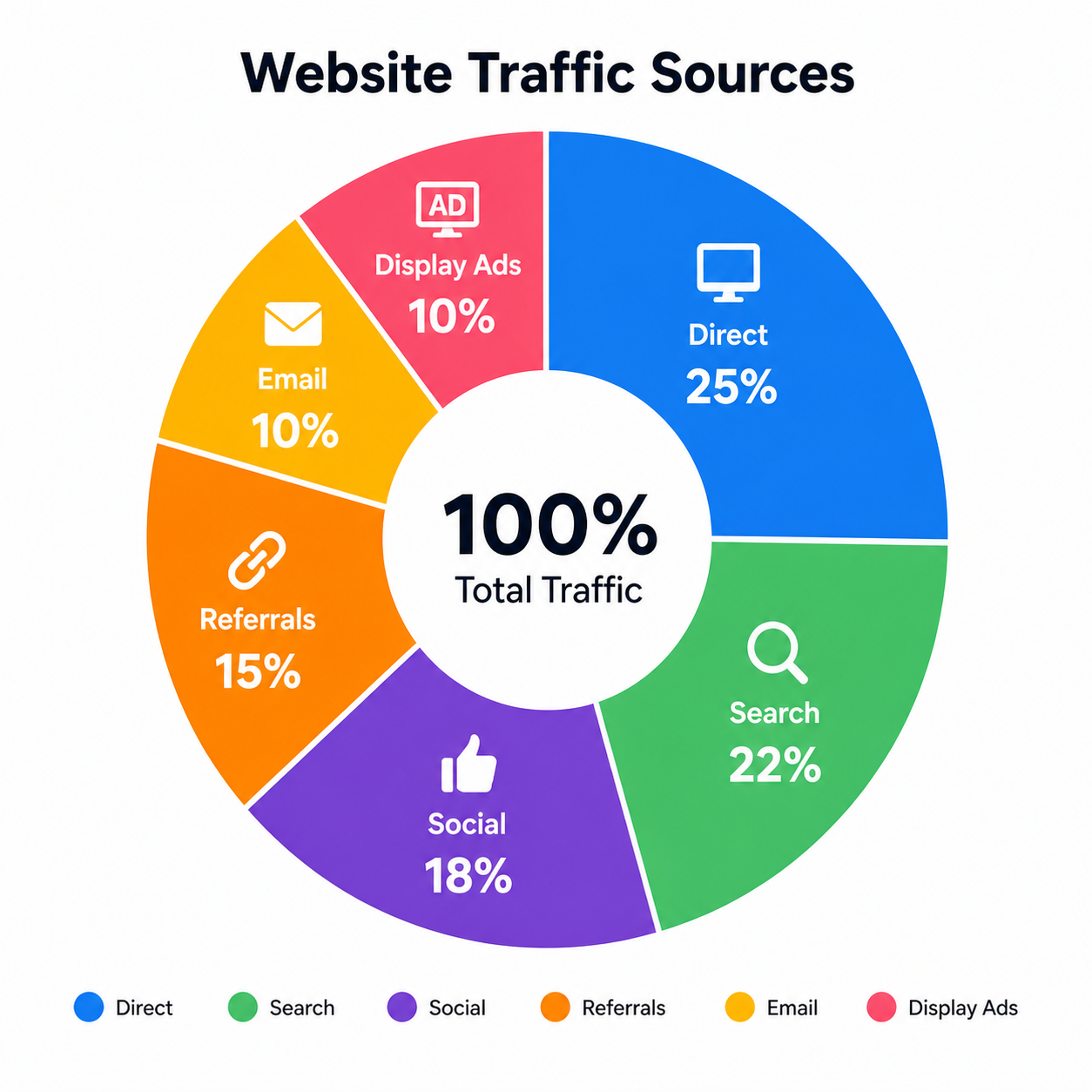
See exactly where a site’s visitors come from — broken into six channels:
| Traffic Source | What It Means |
|---|---|
| Direct | Visitors who typed the URL directly |
| Search | Visitors from Google and other search engines |
| Social | Visitors from social media platforms |
| Referrals | Visitors from other websites linking to it |
| Visitors from email campaigns | |
| Display Ads | Visitors from paid banner advertising |
This breakdown tells you a lot. A site with 80% direct traffic has strong brand recognition. A site heavily reliant on paid ads may struggle organically.
3. Engagement Metrics
The extension shows three key engagement metrics:
- Bounce rate — percentage of visitors who leave after one page
- Pages per visit — average number of pages a user views per session
- Average visit duration — how long users typically stay on the site
These metrics reveal content quality and user experience. A low bounce rate + high pages per visit = engaged audience.
4. Top Keywords and Referrals
The free extension gives you a preview of the top organic and paid keywords driving traffic, plus the leading referral websites sending visitors.
This is where SEOs get the most value — you can see exactly what topics a competitor ranks for before investing in your own content.
How to Install the Similarweb Chrome Extension
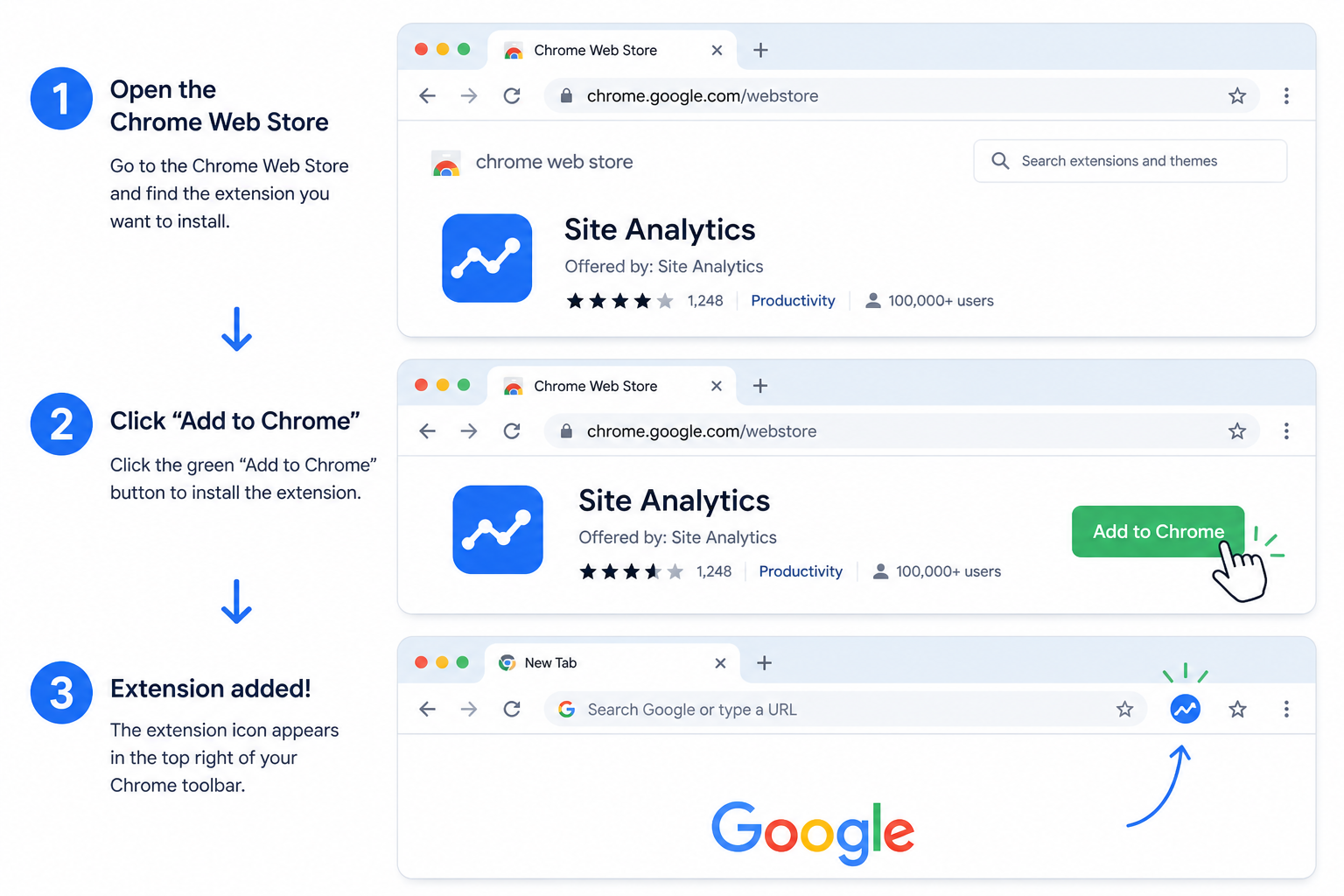
Installing the extension takes under two minutes. Here’s exactly how to do it:
Step 1: Open Google Chrome on your desktop or laptop.
Step 2: Go to the Chrome Web Store. Search “Similarweb” or go directly to: chrome.google.com/webstore
Step 3: Click “Add to Chrome” on the Similarweb — Traffic Rank & Website Analysis listing.
Step 4: A pop-up will ask for permissions. Click “Add extension” to confirm.
Step 5: The Similarweb icon (a small “S” logo) will appear in your Chrome toolbar at the top right. If you don’t see it, click the puzzle-piece icon to pin it.
Step 6: Create a free Similarweb account or log in if you already have one. You can use it without logging in, but you’ll get more data when signed in.
That’s it. The extension is now active and ready to use on any website you visit.
How to Use the Similarweb Chrome Extension (Step-by-Step)
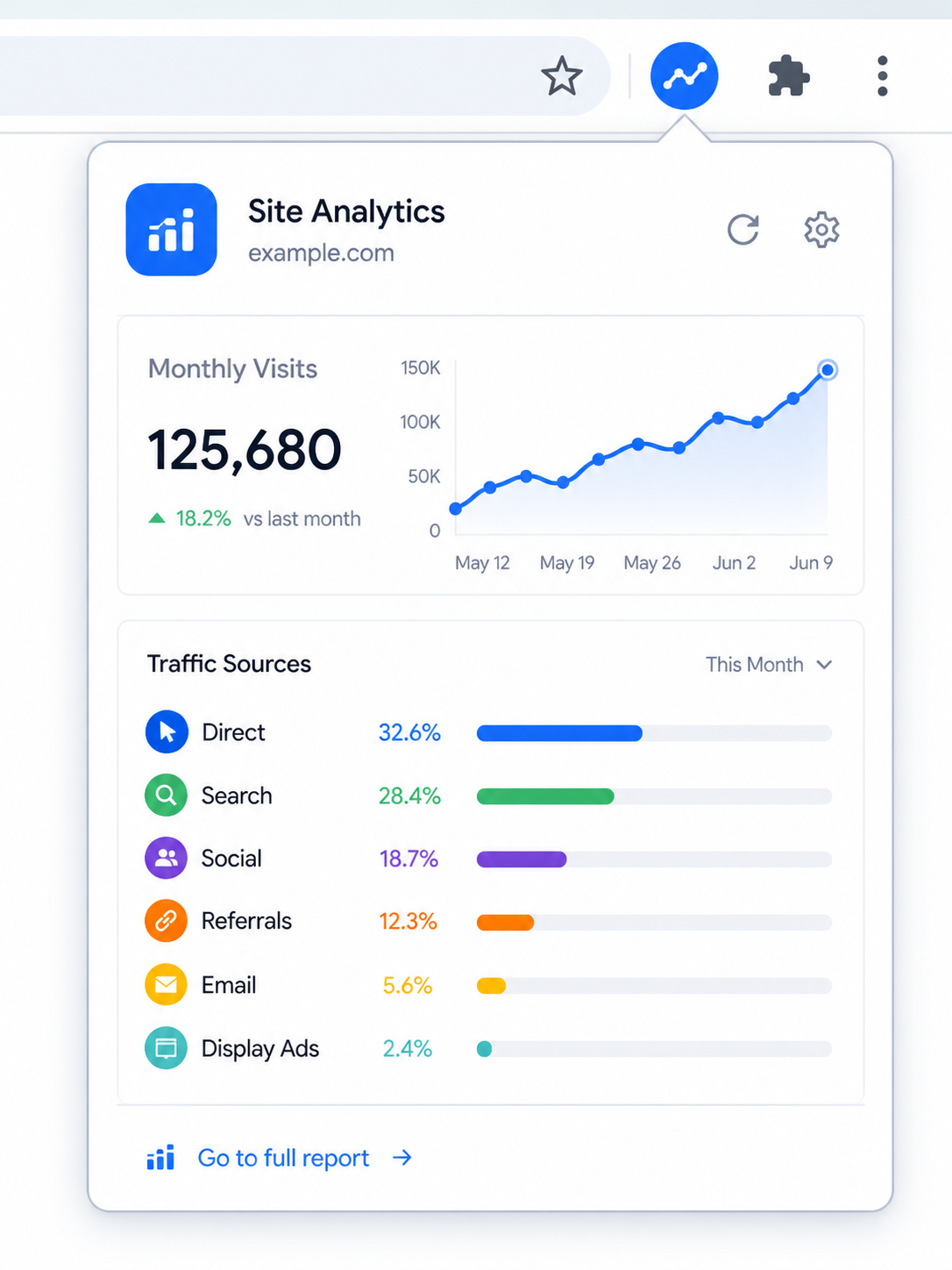
This is the core of this Similarweb Chrome extension guide. Follow these steps to get real insights fast.
Step 1: Open the Extension on Any Website
Navigate to any website you want to analyze — your competitor, a top publication in your niche, or a potential partner site.
Once the page loads, click the Similarweb “S” icon in your Chrome toolbar. A panel slides out from the right side of your screen with the full data dashboard.
Tip: The extension works on virtually any public website. It does not work on local files, password-protected pages, or certain government sites.
Step 2: Read the Traffic Overview
At the top of the panel, you’ll see:
- Global Rank — where this site ranks among all websites worldwide
- Country Rank — ranking within a specific country (usually the site’s primary audience)
- Category Rank — ranking within its industry niche
- Monthly Visits — the estimated number of unique visits per month
How to use this data:
If a competitor site shows 500,000 monthly visits in your niche, that’s your benchmark. If your site gets 20,000, you know the gap you’re working to close.
If a brand-new site is already hitting 100,000 visits, that’s a signal worth investigating — what are they doing right?
Step 3: Analyze Traffic Sources
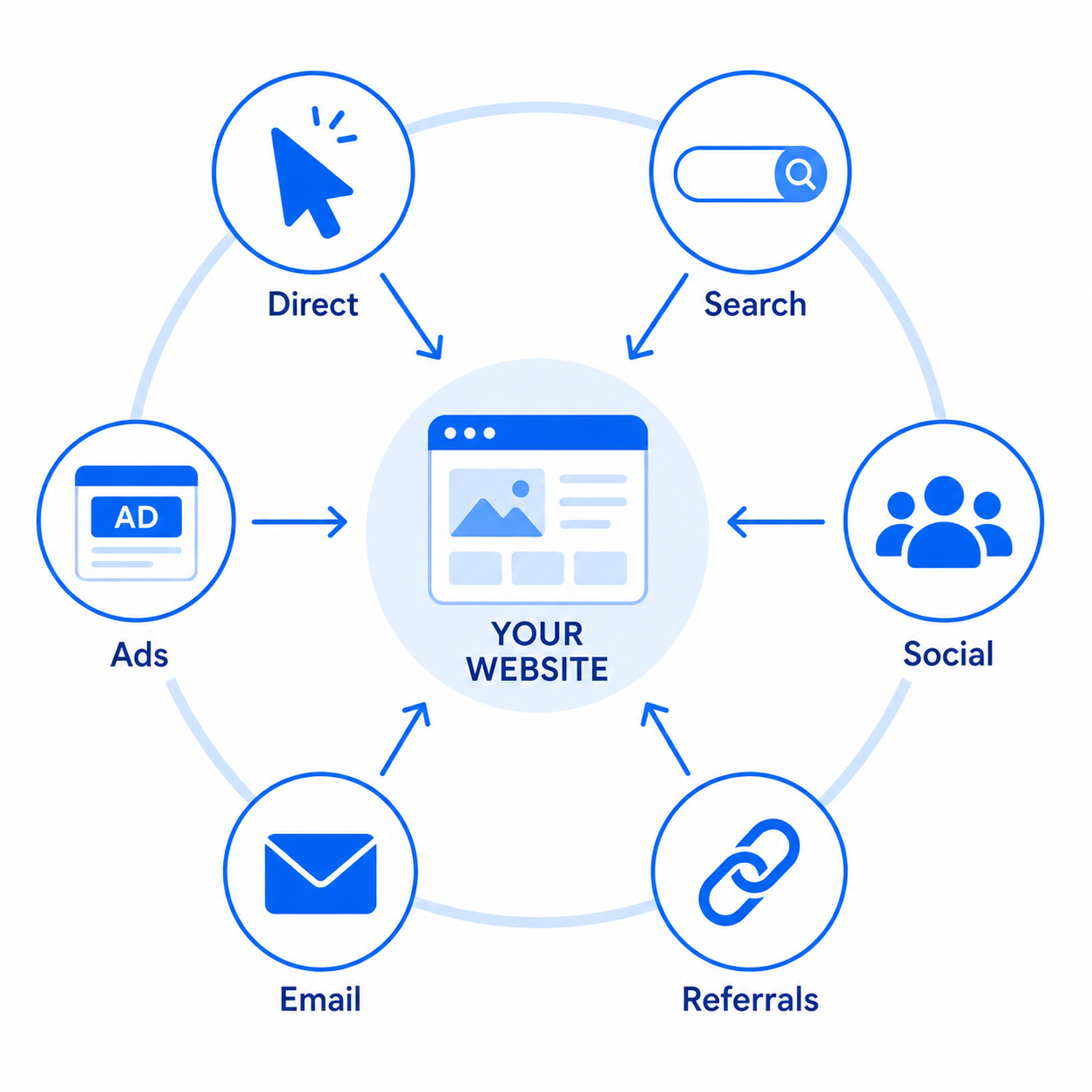
Scroll down in the panel to the Traffic Sources section. You’ll see a visual breakdown of all six channels as percentages.
What to look for:
- High organic search % → the site relies on SEO. Study their top keywords.
- High direct % → strong brand. They likely have loyal, returning visitors.
- High social % → their content performs well on social. Check what platforms.
- High referral % → other sites link to them heavily. Look at who and why.
Real-world example: You’re evaluating a competitor blog. Their traffic sources show 70% organic, 15% direct, 10% social, and 5% referral.
That tells you SEO is their main growth engine, and that competing with them means winning on Google, not social media.
Step 4: Check Competitor Traffic in Seconds
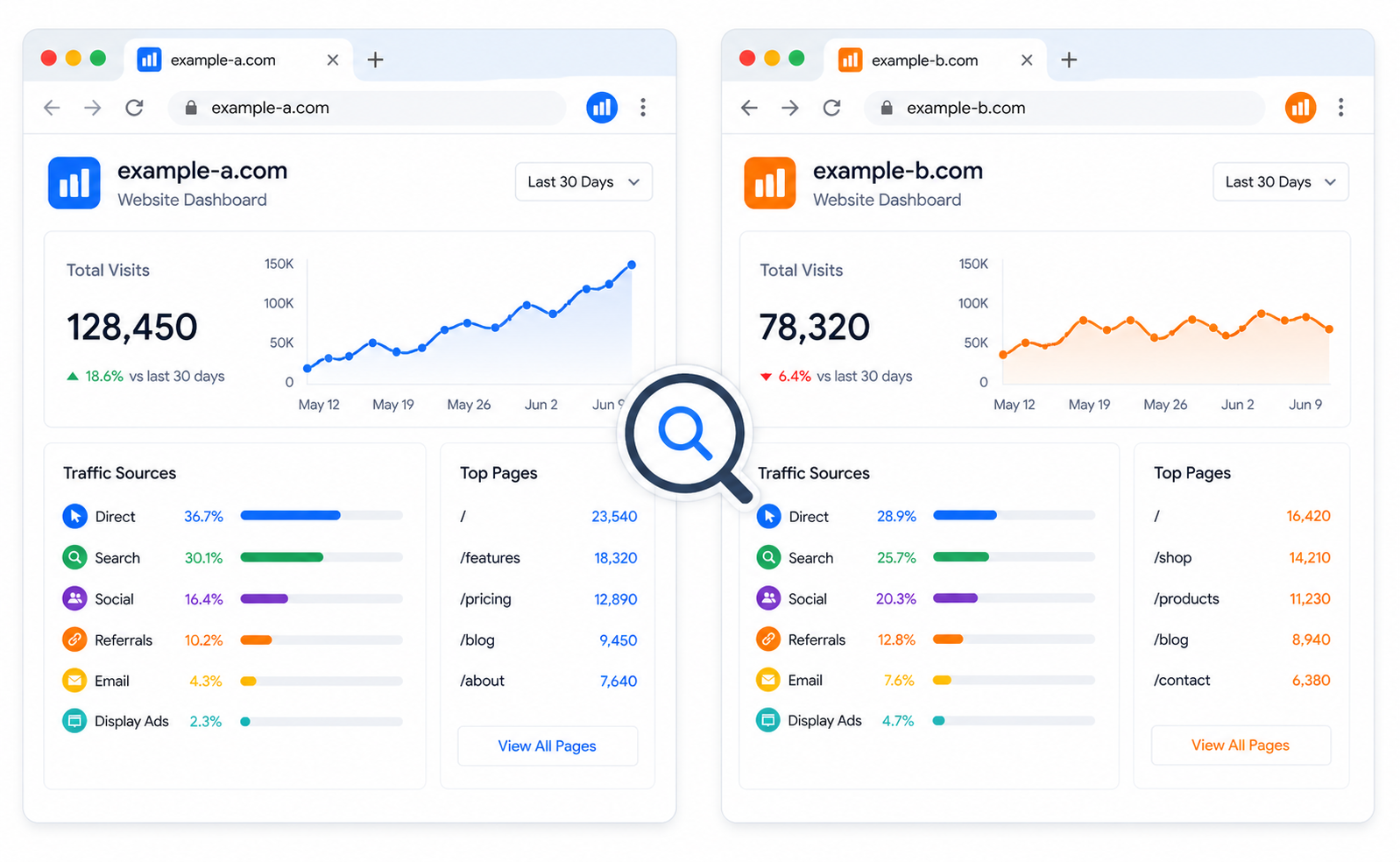
One of the most powerful uses of this Similarweb extension tutorial is competitive research on the fly.
Visit a competitor’s website, open the extension, and within seconds you know:
- Are they bigger or smaller than you thought?
- Are they growing or declining? (Check the traffic trend graph)
- Which channels drive most of their visitors?
- What engagement does their content get?
Do this for 5–10 competitors in your niche, and you’ll start seeing patterns — where the opportunity gaps are, which acquisition channels are underused, and which content types attract the most traffic.
Step 5: Discover Top Keywords

Scroll further down in the extension panel to find the Top Keywords section. This shows a small sample of the search terms driving the most traffic to the site.
How to use keyword data:
- If a competitor ranks for “best email marketing tools” and gets significant traffic from it, that keyword is worth targeting
- Look for keywords you haven’t thought of yet — gaps in your own strategy
- Pay attention to whether keywords are branded or non-branded
Note: The free extension only shows a limited preview of keywords. For the full keyword list, you’ll need the Similarweb website or a paid plan.
Step 6: Review Referral Sources
The Referrals section shows which external websites are sending the most traffic to the site you’re analyzing.
This is gold for link-building. If five different sites are consistently sending traffic to your competitors, those are websites you should pitch for backlinks to.
Step 7: Use Engagement Metrics to Assess Content Quality
The Engagement section shows bounce rate, pages per visit, and visit duration.
Benchmarks to keep in mind:
| Metric | Average Benchmark | What’s Good |
|---|---|---|
| Bounce Rate | 40–60% | Below 40% is excellent |
| Pages Per Visit | 2–3 pages | Above 3 is strong |
| Visit Duration | 2–4 minutes | Above 3 min is solid |
If a competitor has a 25% bounce rate and 6 pages per visit, their content is extremely engaging. Study their site structure, internal linking, and content format — then replicate what works.
How Accurate Is Similarweb?
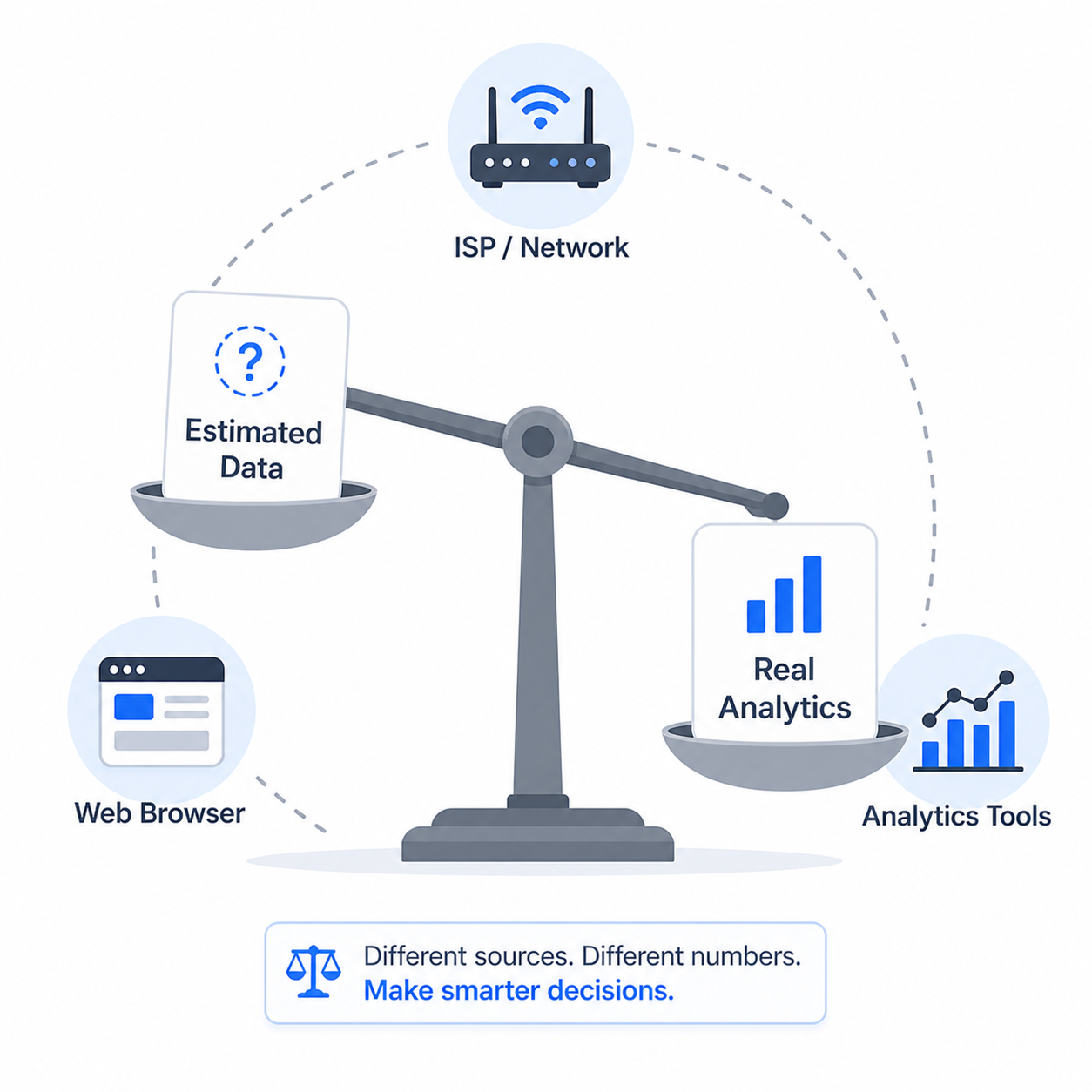
This is the question everyone asks — and the honest answer is: it’s an estimate, not exact data.
Similarweb uses a combination of methods to estimate traffic:
- Data from internet service providers (ISPs)
- Browser extensions and apps that opt into data sharing
- Publicly available web crawl data
- Statistical modeling to fill the gaps
What this means in practice:
For large websites (over 100,000 monthly visits), Similarweb is generally quite accurate — within 10–20% of actual traffic. For small or niche sites with fewer than 10,000 monthly visits, the data can be significantly off.
Key limitations to keep in mind:
- It shows estimates, not verified analytics data
- Small sites may have insufficient data to display meaningful results
- It tends to undercount traffic from mobile apps
- It doesn’t account for traffic from logged-in user portals
Bottom line: Use Similarweb data for directional insights and trend analysis. Don’t make high-stakes business decisions based solely on these numbers. Cross-reference with other data sources when the stakes are high.
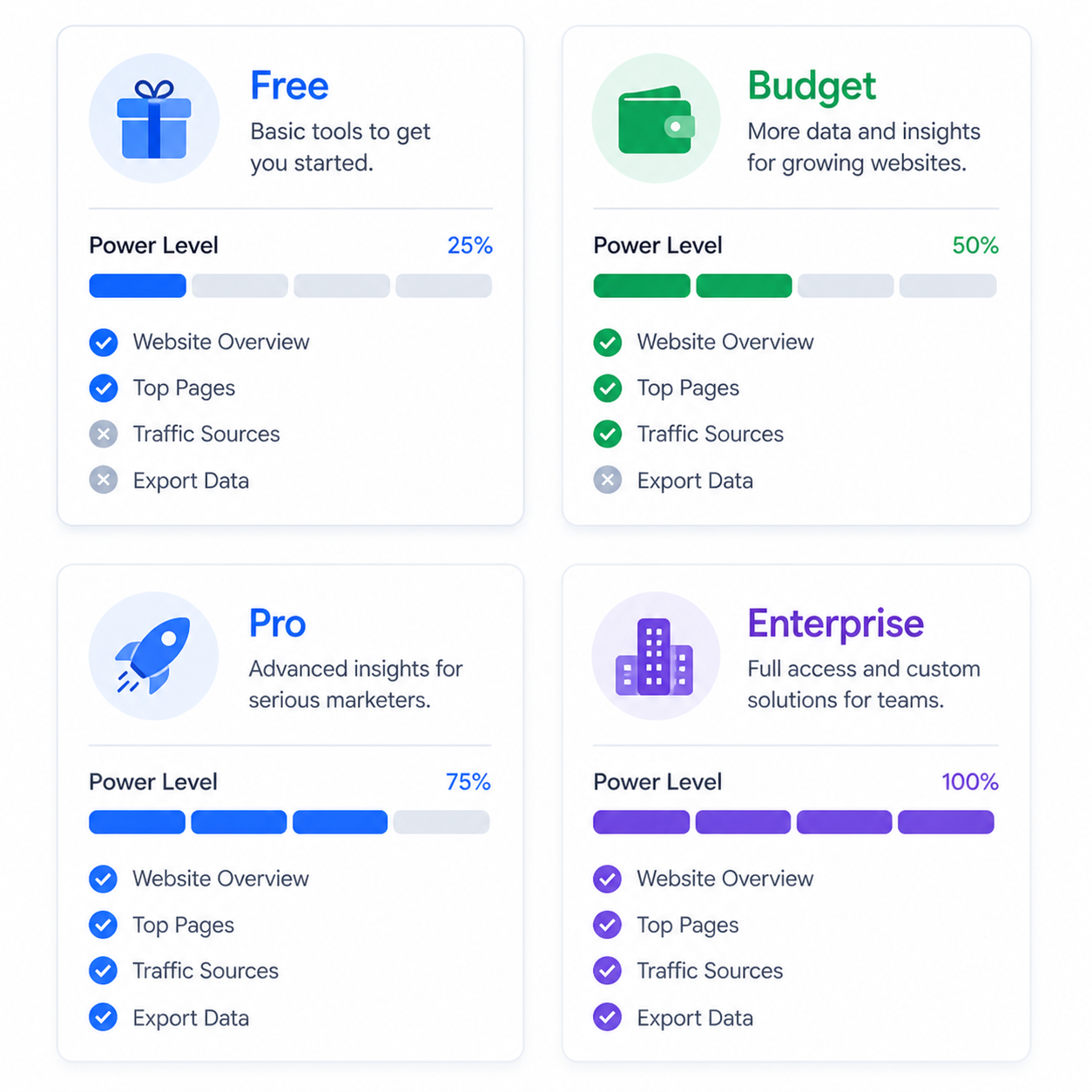
Free vs. Paid Similarweb: What’s the Difference?
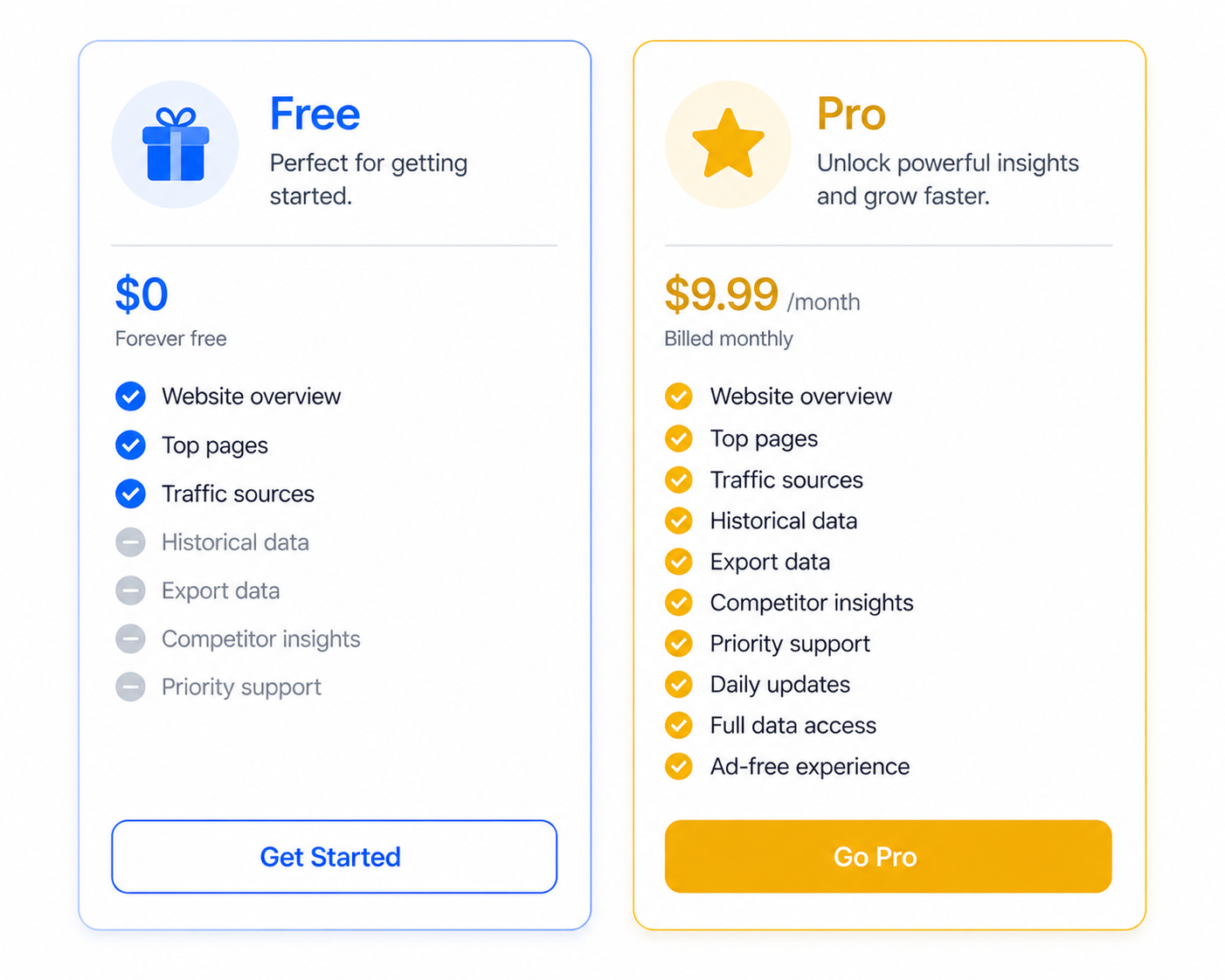
The Chrome extension is free, but there’s a larger platform behind it with more data.
| Feature | Free Extension | Paid Plan |
|---|---|---|
| Monthly traffic estimate | ✅ | ✅ |
| Traffic source breakdown | ✅ | ✅ |
| Engagement metrics | ✅ | ✅ |
| Top 5 keywords preview | ✅ | ✅ |
| Full keyword list (100+) | ❌ | ✅ |
| Historical data (2+ years) | ❌ | ✅ |
| Full referral list | ❌ | ✅ |
| Audience demographics | ❌ | ✅ |
| Industry benchmarking | ❌ | ✅ |
| Competitor comparison | ❌ | ✅ |
| API access | ❌ | ✅ |
Who should stick with the free version:
Freelancers, bloggers, and small businesses doing casual competitor research or quick traffic checks will get significant value from the free extension alone.
Who should consider upgrading:
Agencies managing multiple client accounts, in-house SEO teams doing regular competitive analysis, and enterprise teams needing historical data and full keyword lists will benefit from a paid plan. Similarweb Pro pricing starts at around $125/month.
Best Tips to Use Similarweb Effectively

1. Analyze Trends, Not Just Snapshots
Don’t just look at current traffic numbers. Click the trend graph to see whether a site is growing or shrinking. A site at 200,000 visits that was at 400,000 six months ago is declining — context matters.
2. Benchmark Your Own Site First
Visit your own website and open the extension. This gives you a baseline. Then compare it to competitors one by one to understand exactly where you stand.
3. Use It Before Pitching for Backlinks
Before spending time crafting an outreach email, check how much traffic the target site actually gets. A site that looks active might only pull 2,000 monthly visits — not worth the effort. Prioritize sites with significant organic traffic.
4. Find Underexplored Traffic Channels
If your competitors are getting 30% of their traffic from social media and you’re getting 5%, that’s an actionable insight. Don’t just confirm what you already know — look for asymmetries.
5. Check New Entrants in Your Niche
Set aside 30 minutes monthly to run the extension on new sites you discover in your niche. If a newcomer is growing fast, study their strategy early — before they dominate.
6. Combine It With Google Search Console
Similarweb shows you external data about competitors. Google Search Console shows you real internal data about your own site. Use both together for a complete picture.
Common Mistakes to Avoid
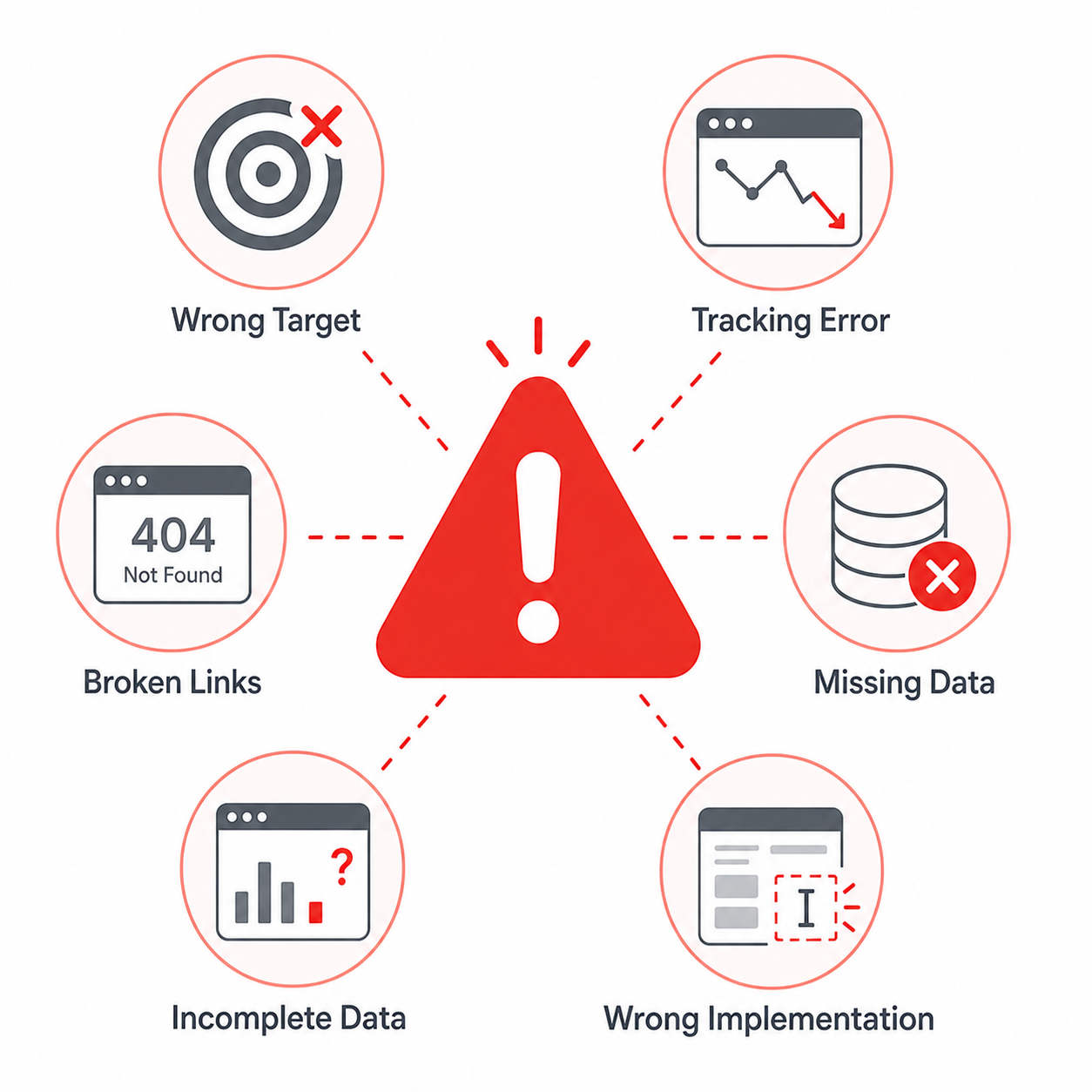
1. Treating estimates as exact numbers. Similarweb traffic figures are approximations. A site showing “247,000 monthly visits” might be anywhere from 180,000 to 310,000 in reality. Use ranges, not precise figures, when making decisions.
2. Ignoring small sites because of low traffic numbers. A niche site with only 15,000 monthly visits might have an incredibly engaged audience and strong referral power. Don’t dismiss sites purely based on traffic volume.
3. Only checking monthly visits. Traffic volume tells you one piece of the story. A site with 50,000 highly engaged visits is often more valuable than one with 500,000 visitors who bounce in 10 seconds. Always check engagement metrics too.
4. Not comparing traffic sources across competitors If you only look at total traffic, you miss channel-level insights. Two sites with identical traffic might achieve it through completely different methods — one through SEO, one through paid ads. That changes your entire response strategy.
5. Using it on sites too small to have data. The extension often shows “insufficient data” for very small or brand-new websites. This isn’t a bug — Similarweb simply doesn’t have enough signals. Don’t waste time trying to force insights from sites below roughly 5,000 monthly visits.
6. Forgetting to log in for better data Creating a free account and staying logged in unlocks more data than using the extension without authentication. It takes two minutes to set up and is worth doing.
Similarweb Alternatives Worth Knowing
The Similarweb Chrome extension is excellent for quick traffic checks, but it’s not the only option. Here’s how it compares to the major alternatives:
| Tool | Best For | Price |
|---|---|---|
| Similarweb Extension | Quick competitive traffic checks | Free |
| Ahrefs | Deep keyword research + backlink analysis | From $129/mo |
| SEMrush | Full SEO suite + PPC competitive intel | From $129/mo |
| Ubersuggest | Budget SEO + keyword research | From $29/mo |
| SpyFu | Competitor PPC keyword research | From $39/mo |
| Google Search Console | Your own site’s real search data | Free |
The honest take: Similarweb is the fastest free option for competitor traffic analysis. Ahrefs and SEMrush are more powerful for in-depth SEO work but cost significantly more. For most users, combining the free Similarweb extension with Google Search Console covers 80% of what you need day-to-day.
Frequently Asked Questions Similarweb
How do I use the Similarweb Chrome extension?
Install it from the Chrome Web Store, then click the Similarweb icon in your toolbar when you’re on any website. A side panel appears instantly, showing monthly traffic, traffic sources, engagement metrics, and top keywords for that site. No setup required beyond installation.
Is the Similarweb Chrome extension free?
Yes, the Chrome extension is completely free. You can install and use it without a paid plan. Creating a free Similarweb account gives you access to slightly more data.
A paid subscription unlocks full keyword lists, historical data, and advanced analytics on the main platform.
How accurate is Similarweb data?
Similarweb provides traffic estimates, not verified analytics data. For large websites (100,000+ monthly visits), accuracy is generally within 10–20% of actual traffic.
For smaller sites, figures can be less reliable. Use the data for directional research and trend spotting rather than precise reporting.
Can I use the Similarweb Chrome extension for SEO?
Absolutely. It’s one of the fastest ways to check competitor keyword strategies and assess which search channels drive traffic.
Find high-traffic content topics and benchmark domain authority through traffic signals, all without leaving your browser.
Does the Similarweb extension show keywords?
Yes, the free extension shows a preview of the top 5 keywords driving traffic to any website.
For the full keyword list with volume data and rankings, you need to access the full Similarweb platform, which requires a paid subscription for comprehensive results.
Does Similarweb work on any website?
It works on virtually any public website. It won’t display data for local files, password-protected portals, or very new/small sites that lack sufficient traffic data.
Most established sites with 5,000+ monthly visits will return useful results.
Conclusion: How to Use Similarweb Chrome Extension
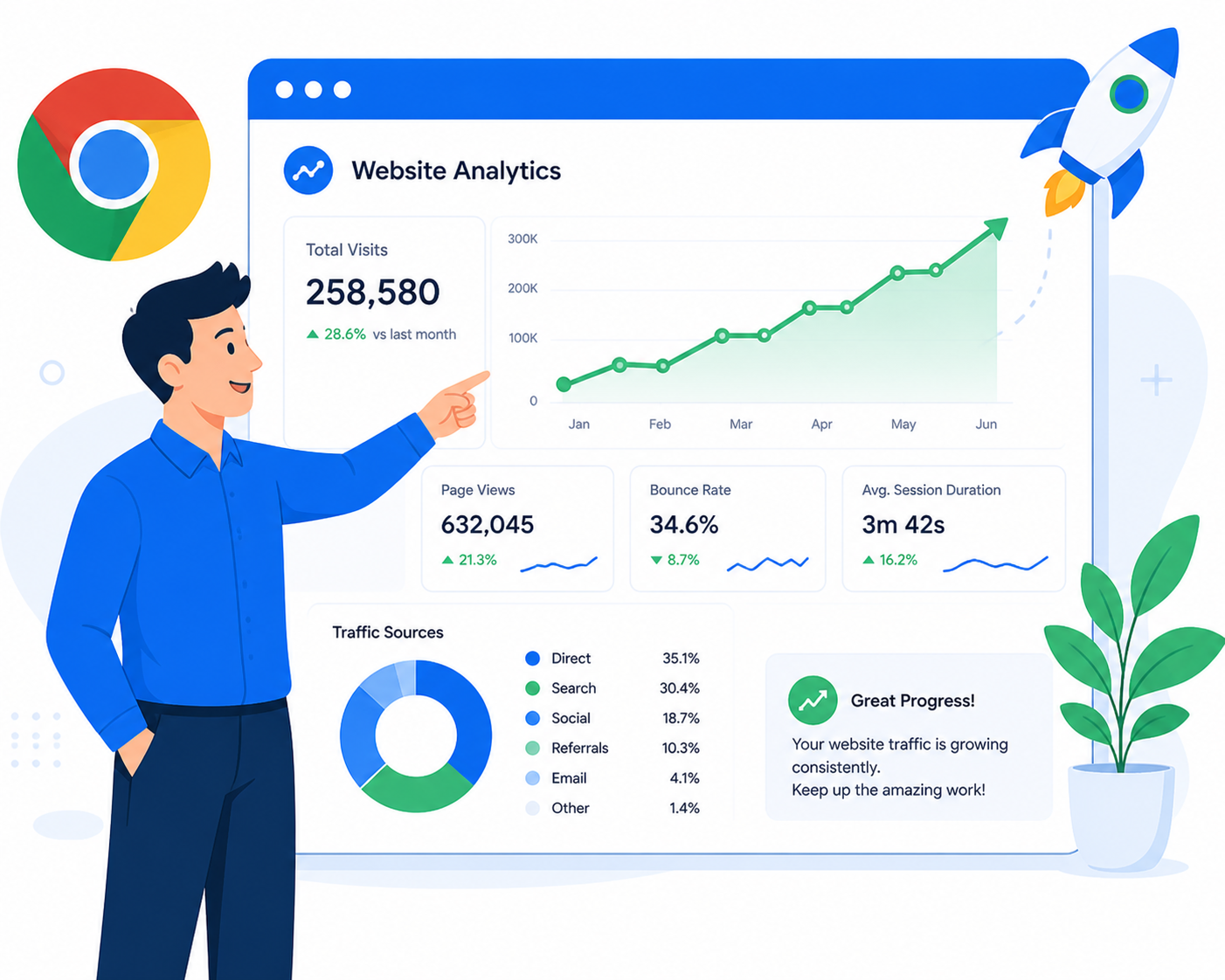
The Similarweb Chrome extension is one of the most underrated free tools in any marketer’s toolkit. In a single click, you get a snapshot of a website’s traffic, its top channels, and the keywords fueling its growth.
Here’s what to remember:
- Install it free from the Chrome Web Store in under 2 minutes
- Use it on competitor sites, potential link partners, and your own domain
- Focus on traffic source breakdowns, not just total visit numbers
- Cross-reference with engagement metrics to assess content quality
- Treat all figures as estimates — directional, not definitive
Start by running it on your top three competitors right now. You’ll likely discover at least one traffic source or keyword opportunity you hadn’t considered before.
If you want to go deeper, explore the full Similarweb platform or pair the extension with tools like Ahrefs or SEMrush for a complete competitive intelligence stack.
If you are looking for how to create your own online course without any issue, you just need to check out here and know how to create your course or take an online course, and try out LearnWorlds and see how it can change your ways of learning any faster.
You know that anyone can make money online by taking online surveys and earn money while you doing that without any investment.